Android
Android 15
Organize writing, publishing and software projects with task lists and progress notes.
The Android edition does not scan folders or show Mac activity and performance. Imported checklists are saved snapshots.

Projects and next steps · by Tristin Hassell
Your next task, beside the file you need
For writers, publishers and other people returning to projects spread across folders and unfinished tasks.
Returning to a project should not require reopening every folder to remember the next step. The Lyceum keeps projects and tasks in view and helps you find recent work in folders you chose. The workflow below describes the Mac edition.
Mac · Windows · Linux · Android
Not released yet. In testing on Mac, Windows, Linux and Android. The Mac edition is signed and notarized by Apple for installing outside the App Store. No store carries it, and this site has no download.
An app in its own right. Part of Studio Suite when you need it.
Organize projects, tasks and recent files in the folders you choose. Use it as your own project desk without opening another Studio app.
Start the shared project, choose a demonstration and open its reading or argument work in the appropriate app. Keep the next step visible as you return from writing, discussion or civic work.
Demonstrations are on Mac, Windows and Android. Tools differ by device. You review the material carried between apps; private notes and credentials do not automatically synchronize.
Explore the other Studio Suite apps
Inside The Lyceum
Example screens show particular editions. Features and layouts differ by device.
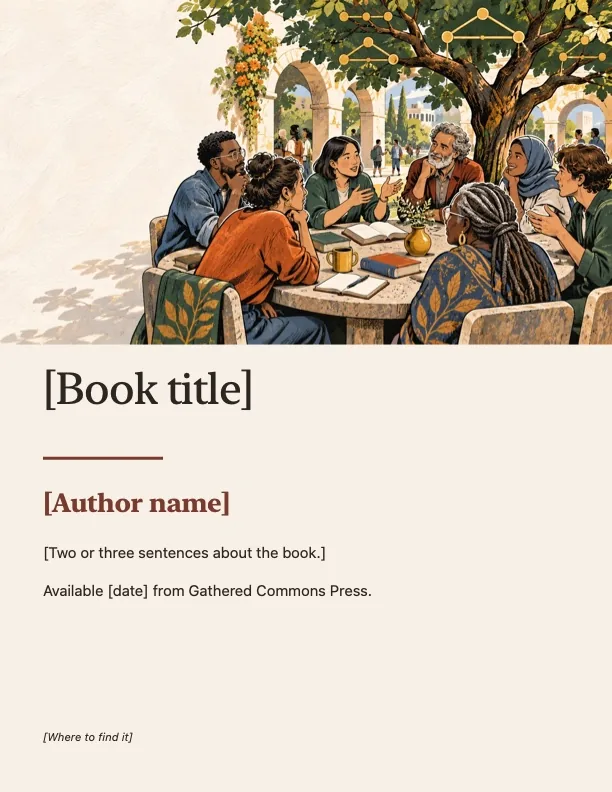
A book announcement made from a design template in the Layout window, with sample title, author and date lines in brackets.
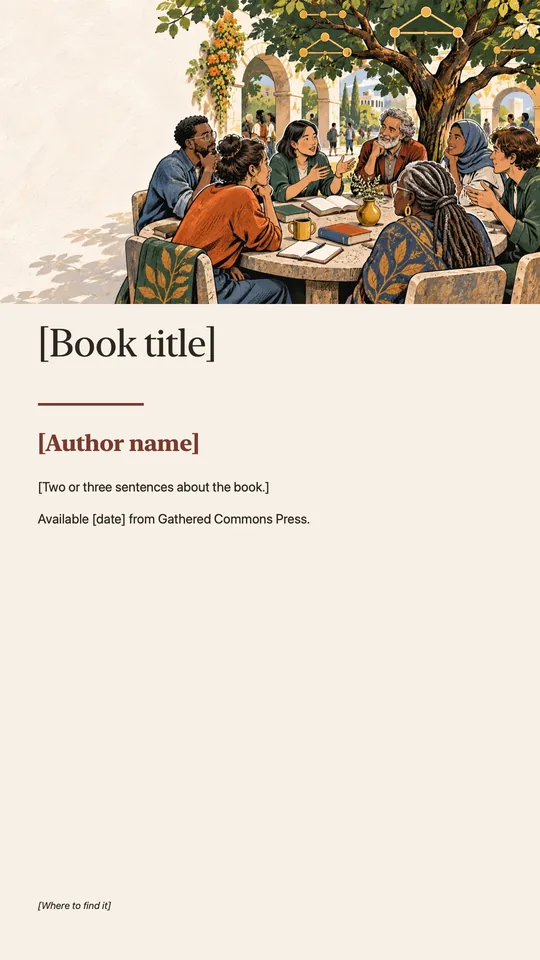
The same announcement resized to a tall story format, with the art and text moved to fit.
A first session in the Mac edition
On Mac, begin with Writing, Publishing or Software and add a project and its next task.
Choose the folder the app may read. Inspect recent files and reveal the one you need in Finder.
Use one window or separate panels. Complete a task when it is finished, or reopen it when more work is needed.
What you leave with
A project with its next task and relevant files within reach.
Android 15
Organize writing, publishing and software projects with task lists and progress notes.
The Android edition does not scan folders or show Mac activity and performance. Imported checklists are saved snapshots.
64-bit Windows PC
Keep projects and tasks organized while working on a Windows PC.
Mac activity readings, Finder actions and Mac keyboard shortcuts are not part of it.
| Device | What it needs |
|---|---|
| Mac | macOS 14 or later, Apple silicon or Intel. The workspace, folder and panel workflow described here. |
| Linux | It does not yet have every tool in the Mac edition. |
Choose Writing, Publishing or Software. Each starts with a sample project and a few pending tasks. Change workspaces whenever you like; your saved projects and tasks are there when you return.
Add and rename projects, add tasks, and check them off as you finish. Reopen a completed task when it needs more work. Changes are saved on your Mac.
Connect Documents, Downloads or another folder once. Recent work follows changed files in those folders; select one to show it in Finder. You choose which folders the app may read.
See open apps, CPU activity and memory readings. Select an app to bring it forward. Readings refresh every 30 seconds while the overview is open.
Keep the Mac and display awake for 30 minutes, one hour, two hours, or until you turn it off. Closing the overview keeps your choice active. Quitting The Lyceum ends it.
Bring your panels together and switch between them with side tabs. Keep a panel separate, collapse it, or close it when you want more room. Open small desktop panels, move and resize them, and show or hide them together. Your layout is kept for next time.
Long projects are rarely lost all at once. They drift: a file saved in the wrong folder, a task remembered at midnight, a draft in one app and its notes in another. The Lyceum keeps the project, its next steps and its recent files in view, so the work you return to is the work you left. It is named for Aristotle’s school, where people walked while they thought.
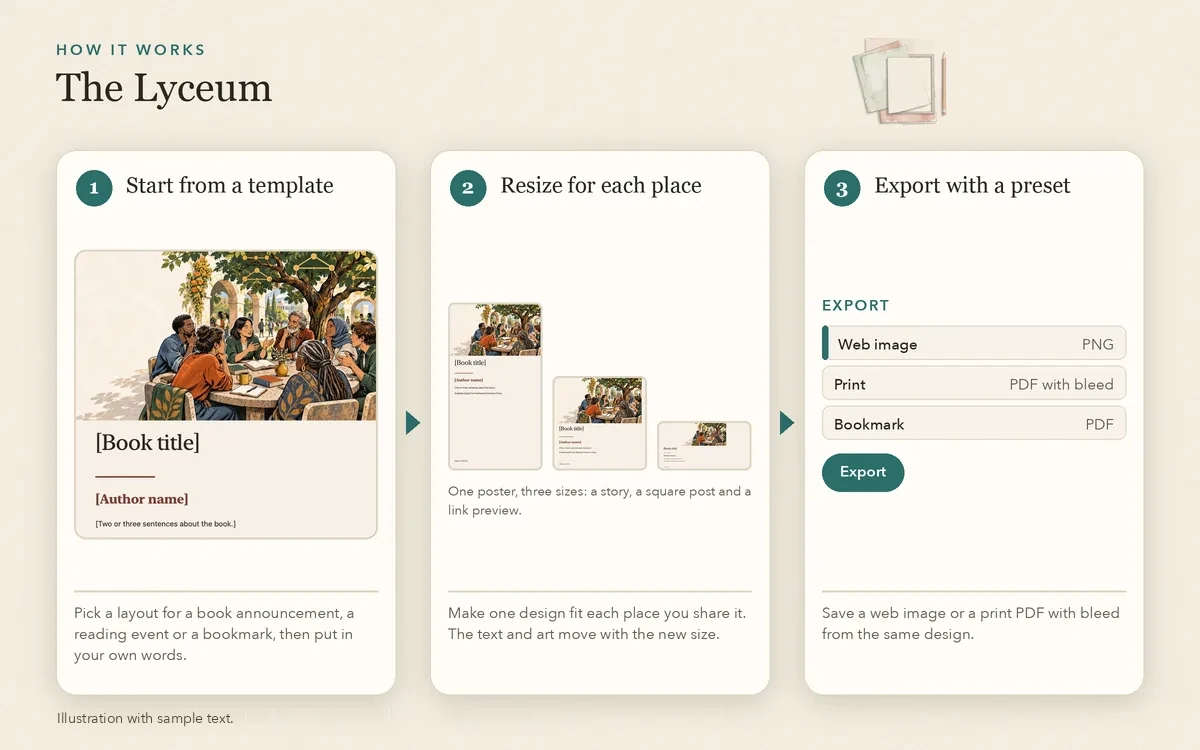
Stoa is The Lyceum’s word processor, with Story and Poetry modes for fiction and verse. On Mac, a separate Layout window makes flyers, bookmarks, postcards and social posts from templates: resize a design and its text reflows, align and snap parts to each other, and export a PDF with bleed and crop marks or a PNG or JPEG.
Stoa is also being made into an app of its own, for Mac, Windows, Linux, Android and iPhone, with the same editor inside. It is not released.
Projects and tasks created in The Lyceum are saved separately from connected files, and connected folders stay unchanged. Choose Custom folders to follow existing project activity; optional connections read status, checklist and usage files without changing them. No account with us is required, and the app has no ads, analytics or tracking. If you make apps and add your own App Store Connect key, The Lyceum can ask Apple for your apps’ testing status. Project contents are never sent.
Read the privacy policy for details about recent files, local Mac readings and optional connections.
Choose a text size in Settings and decide whether panels stay above other windows. Control-Option-Command-I moves keyboard focus to the panels; Tab moves through rows and Space opens an item. Controls have VoiceOver labels, and colour is accompanied by words or symbols.
Choose a demonstration and open its reading work in Academus or its argument work in Dialectic. Back returns to the previous view; Home returns to the main screen. Opening another app does not mark a task complete.
Tools differ by device; the edition details on this page say what yours has. Read about the shared demonstrations →
This overview describes the Apple edition. Read the full policy for Android and Windows details.
Yes. The Windows edition keeps projects and tasks together and shows recent files in a folder you choose. It does not include every Mac feature.
Writing, Publishing and Software workspaces start without a folder chooser. Choose Custom folders when you want to follow existing project files.
Yes. Each workspace keeps its own projects and tasks on your Mac. Return to that workspace to use them again.
No. You confirm each folder the app may read. It shows up to 12 recently changed files from a limited search within those folders.
No. The key is only for optional TestFlight status from Apple. Projects, tasks, recent files and Mac readings work without one.
No. It starts Off, lasts only as long as you choose, and ends when you quit The Lyceum.
Email hello@gatheredcommonspress.com. I answer within three business days.
Software by Tristin Hassell. Published by Gathered Commons Press LLC.